Manage facility contacts
Each facility has its own contact directory. Open a facility and select its contacts section to search, add, edit, or remove contacts.
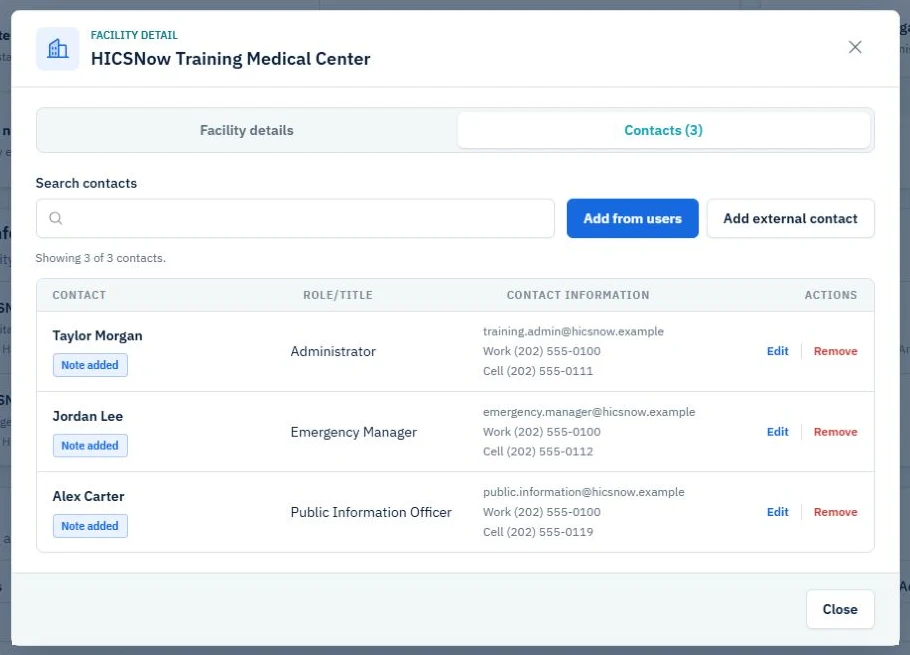
Add from users
Use Add from users when the contact already has a HICSNow account in your organization.
- Select Add from users.
- Select an active user.
- Choose a Role/Title.
- If Other is selected, enter the custom Role/Title.
- Add an optional note.
- If required profile phone information is missing, enter it when prompted.
- Select Add contact.
The contact stays linked to the user's global profile. Authorized changes to the user's name, email, work phone, or cell phone update the linked facility contact.
When the selected user does not have a cell phone, HICSNow requires one before the contact can be added and saves it to the user's profile. A missing work phone may also be entered and saved to the profile.
Add an external contact
Use Add external contact for a person who does not have a HICSNow account in the organization.
- Select Add external contact.
- Enter the person's first and last name.
- Choose a Role/Title or select Other and enter a custom value.
- Enter the required cell phone and any available email or work phone.
- Add an optional note.
- Select Save.
HICSNow does not allow two contacts in the same facility to share an email or cell phone. This prevents a workspace user from also being entered as a duplicate external contact.
Standard Role/Title choices
- Administrator
- Emergency Manager
- Security
- Facilities
- Public Information Officer
- Other
Maintain a linked contact
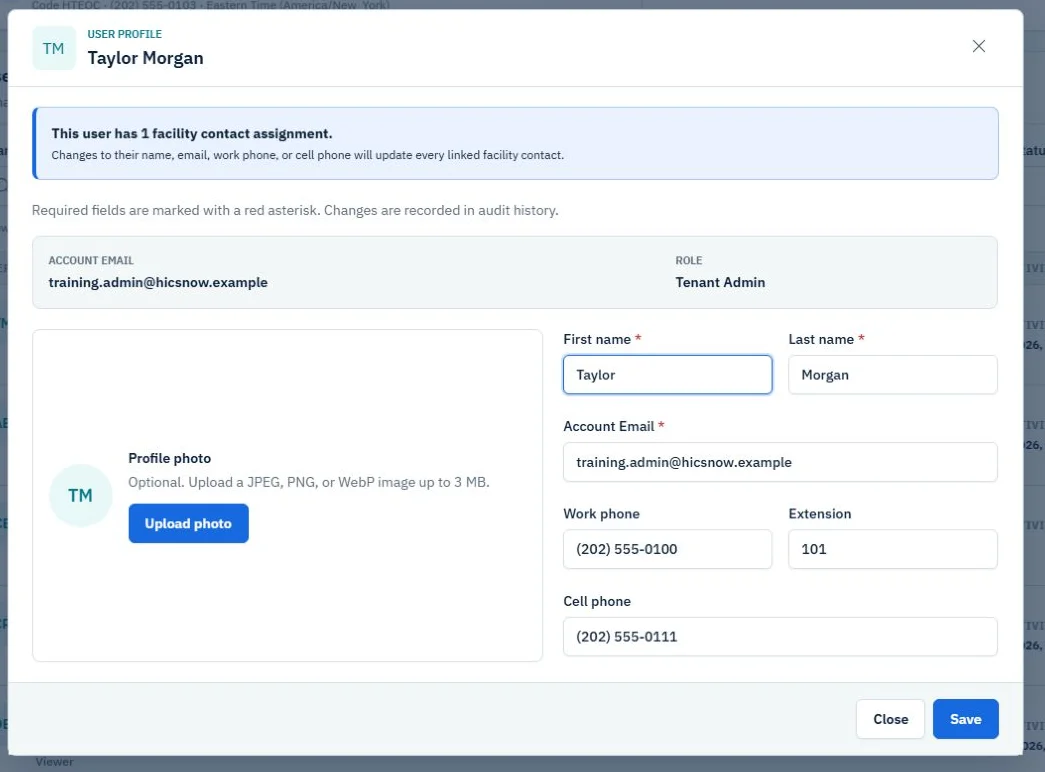
A linked contact separates global user information from facility-specific information:
- Update the user's name, account email, work phone, extension, cell phone, or profile photo from the Users card.
- Update the contact's Role/Title and notes from the facility contact directory.
- If the linked user has no work phone, you may add it while editing the contact. HICSNow also saves it to the user profile.
- HICSNow prevents the cell phone from being cleared while the user remains a facility contact.
The user profile displays the number of linked facility contact assignments before an administrator makes changes. Profile and contact changes are recorded in audit history.
Deactivate or reactivate a linked user
Before deactivation, HICSNow lists the facilities where the user is a contact. Confirming the action removes the user's workspace access but preserves the contact assignment and history.
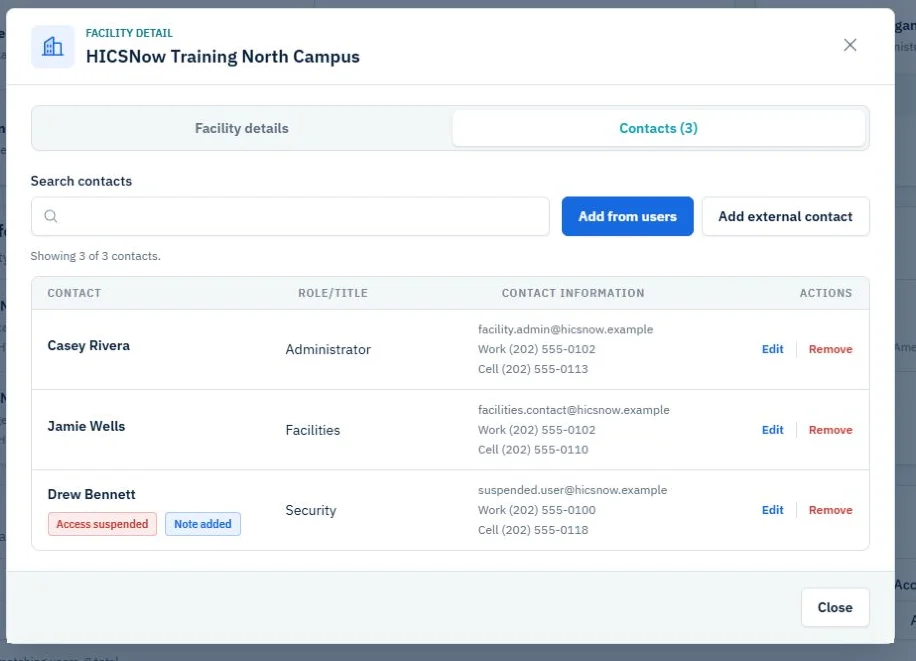
The contact directory displays Access suspended in red. Reactivating the user restores workspace access and removes the suspended label. An administrator may instead replace or remove the facility contact assignment while the user remains suspended.
Remove a contact
- Removing a linked contact removes only that facility-directory assignment. It does not deactivate or delete the user account.
- Removing an external contact removes only that facility-directory record. It does not affect HICSNow users.
- Contact additions, edits, and removals are recorded in the workspace audit history.
Contact status and notes
- Access suspended appears in red when a linked user's workspace access is deactivated.
- Setup pending or another access label may appear when a linked user's membership is not currently active.
- Note added indicates that a note is available without expanding the directory row. Open Edit to review the full note.